Folders and courses
Folders
Choose from the teachers’ page Our games and click on New folder.
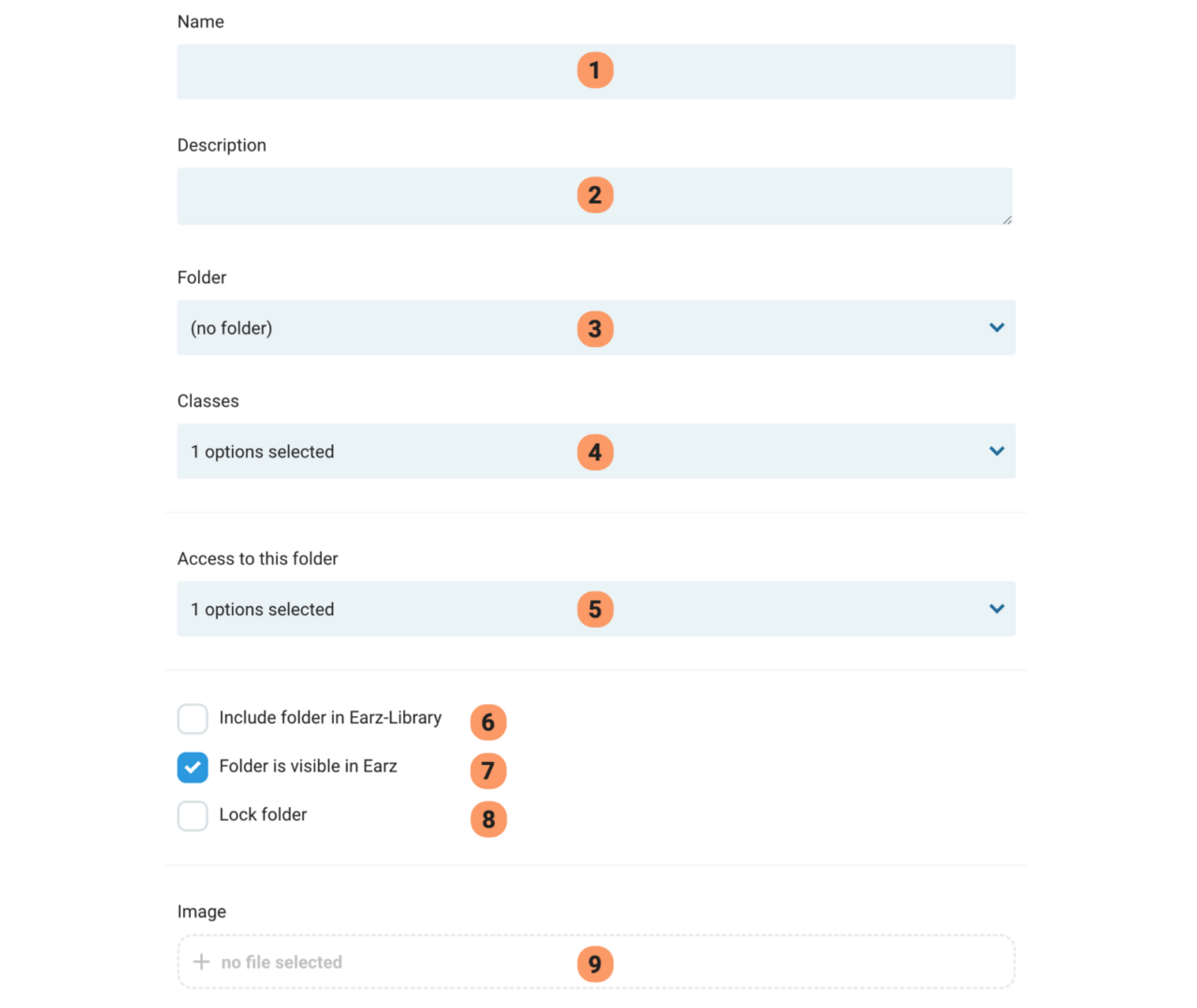
(1) Name of the folder
(2) Description/information about the folder for yourself/colleagues. This cannot be seen (for students) in the app.
(3) If necessary, choose a folder this folder should be part of.
(4) Choose class(es) where this folder should be visible (in the app).
(5) Select teachers with access to this folder.
(6) The folder is/is not visible in Earz-library.
(7) The folder is/is not visible to students in the app.
(8) The folder is/is not locked, and therefore accessible/not accessible to authorised teachers.
(9) Optionally add an image (png or jpg) visible in the app.
Courses
Choose from the teachers’ page Our games and click on New course.
A course contains several games in a certain order.
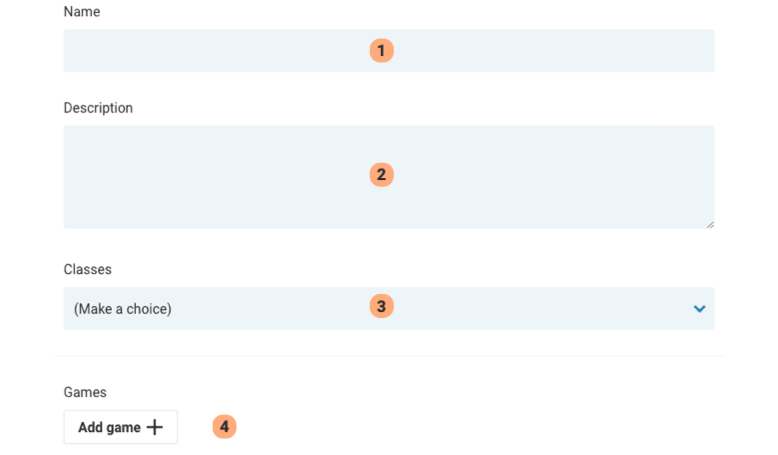
(1) Name of the course.
(2) Description of the course; it is visible (under the title) in the app.
(3) Choose class(es) where this course is visible in the app.
(4) Add games and determine (by dragging and dropping) the order.